.png?width=200&height=42&name=the%20digital%20concierge%20(24).png)
Now you have installed the Merlo AI email agent Power Automate solution, now it's time to set up the email agent for your business users. This process can be done easily following these steps, and would take less than 10 minutes to complete the process.
The first step of the process is to share the Power Automate workflow with the users you wish to install Merlo AI.
- Open the Merlo AI email agent solution in Power Automate and select Merlo AI - Email Agent flow.
- Click the "Share" button from the main menu
- Add the users to the shared list by entering their email address and selecting them from the dropdown when they appear
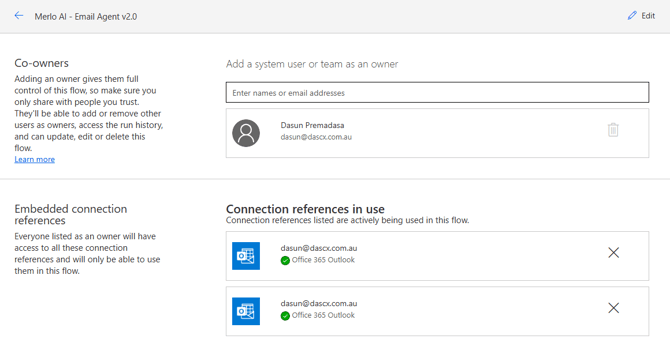
Make sure you share the flow with all the users you wish to install Merlo AI.
The next step of the process is to install the Merlo AI into the user's Office 365/Outlook environment.
- First you must log in to each user's environment using their Office 365 account.
- Go to make.powerautomate.com and click on "My Flows"
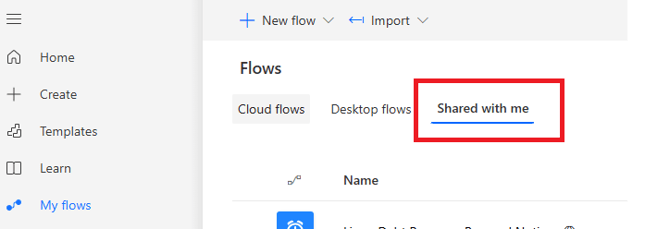
- Select the "Shared with Me" tab
- Select the Merlo AI - Email Agent flows and use the "Save As" button to create a local version of the workflow for the user. Ensure you use the user's name at the end of the flow when saving it.
Once the local version is created for the user, you must configure it for the user's Office 365 account within the "My Flows" section.
- Open the flow and select the When Email Arrives trigger, and click on "Change Connection Reference"
- Create a new connection using the logged-in user's account
- Open "Folder" and select the "Merlo AI" or "Index" folder from the Outlook folder list. This is the folder that the flow will monitor for emails. The Merlo AI - Email agent must be pointed to the working folder, and the Merlo AI - Organizer agent must be pointed to the Inbox. The organizer agent will read incoming emails and move any emails Merlo AI agent is designed to answer.
- Select all Outlook Power Automate actions and change the connection to the newly created connection
- You must perform the above steps for both Merlo AI - Email Agent and Merlo AI - Email Organizer flows
- Send an email to the user's email inbox asking for instructions on how to perform a renovation as a test email. Upon the user receiving the email, it must be picked up by the organizer email and moved to the Merlo AI folder. Once moved into the Merlo AI folder, the Merlo AI - Email agent must respond to the email.